
A short guide for loan officers using the Divida Capital mobile app to log in, capture Leads, and track sync status in the field.
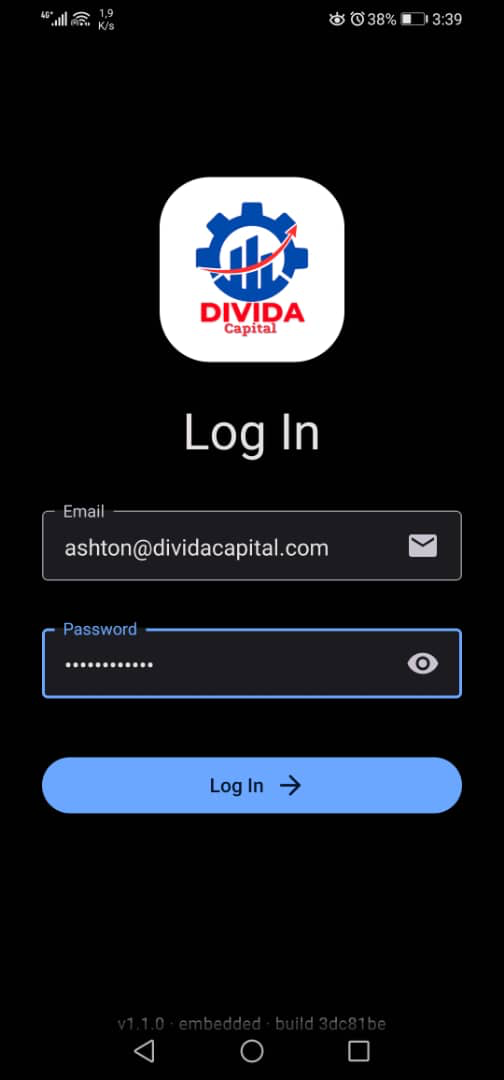
Open the app and enter your work email and password, then tap Log In.
Tap Add Lead and enter the borrower's details. Phone numbers must be Zimbabwe numbers, starting with +263.
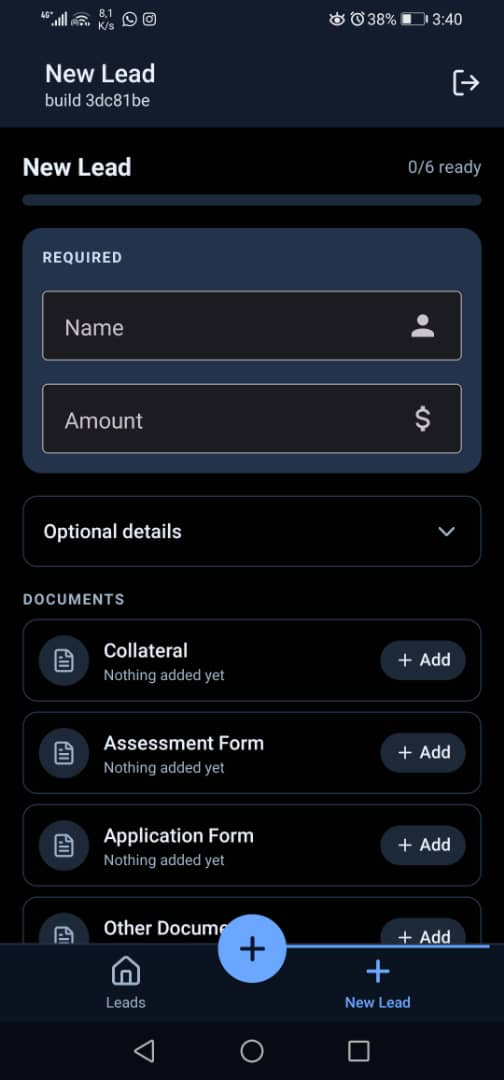
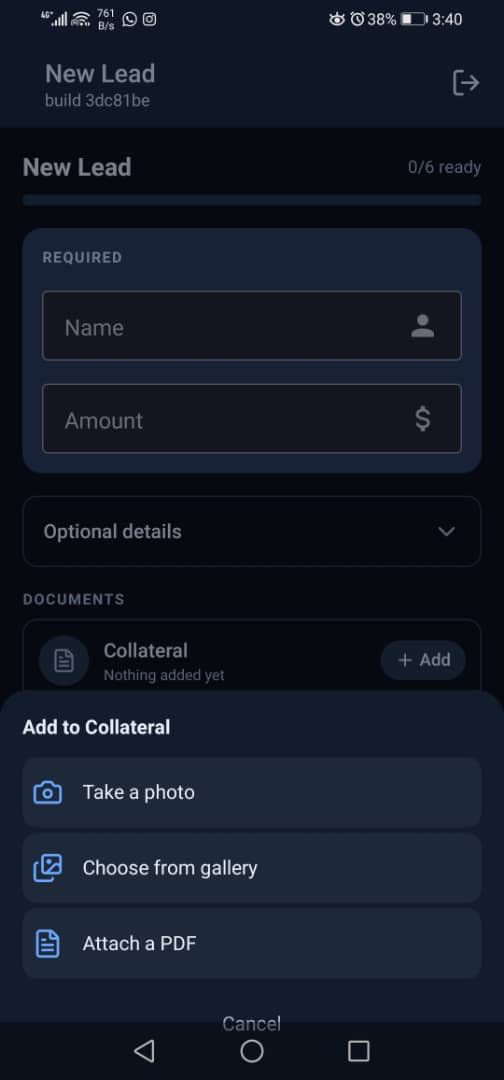
Attach documents for each slot — Collateral, Assessment Form, Application Form, and Other — using the camera, photo library, or file picker.
No signal? Keep capturing. Leads with no connection queue on the device and sync automatically once you're back online. From the queue you can retry or discard any lead that hasn't sent yet.

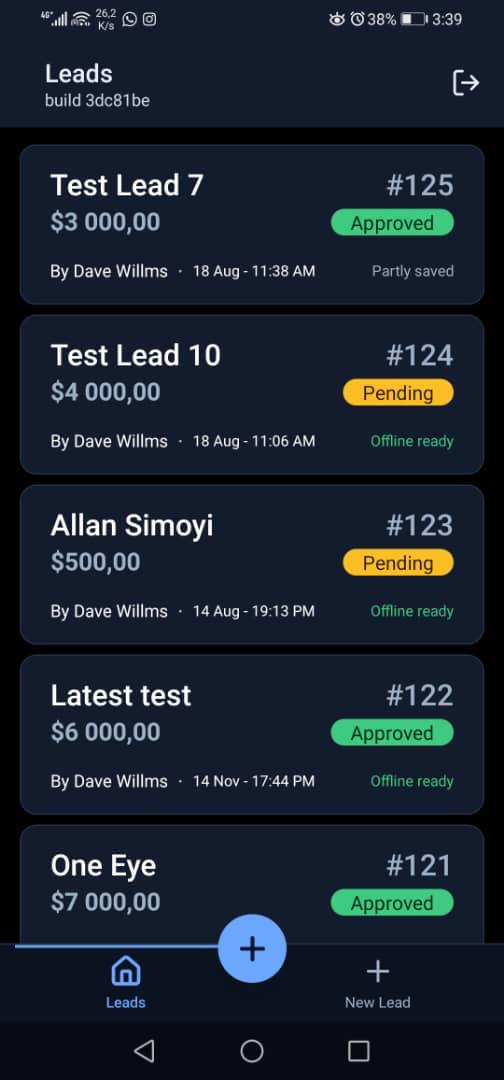
Open the Leads tab to see every lead you've captured, with a label showing whether it's ready, queued, or synced.
This section is for administrators. Enter the admin password to view it.